


Kiflo Fathom Integration: Partner Call Summaries, Action Items, and Transcripts On the Record
Kiflo now captures your Fathom calls. The summary, the action items, and the full transcript become a note on the matching partner, lead, or deal a few minutes after Fathom saves a new recording. You choose what to save, and the integration is available on Plus and Premier plans.
What does the Kiflo Fathom integration do?
It saves what Fathom produces for each recorded call as a note on the right partner, lead, or deal in Kiflo. Kiflo captures the AI summary, the action items, and the full transcript, so the conversation sits next to the record it is about, where your partnership team already works.
Fathom already logs calls on CRM records through its own HubSpot and Salesforce integrations, on contacts, accounts, and opportunities. The Kiflo integration covers the records you manage in Kiflo: your partners, your leads, and your deals.
Fathom is not the only tool that meets your team where it works. Kiflo also posts partner, lead, deal and overlap notifications to Slack, and the Kiflo Slack integration guide explains how to set that up.
How do you connect Fathom to Kiflo?
Add Fathom from the Integrations page in Kiflo, copy the webhook URL generated by Kiflo into a new Fathom API Key's webhook field in Fathom, then paste the webhook secret back into Kiflo and choose what to save. You work in both products, and Kiflo has a full Fathom setup guide. You need a Kiflo plan that includes the integration (Plus or Premier) and a Fathom account that records your calls.
- In Kiflo, go to Manage, then Integrations, open Fathom in the Meetings category, and click Add to Kiflo.
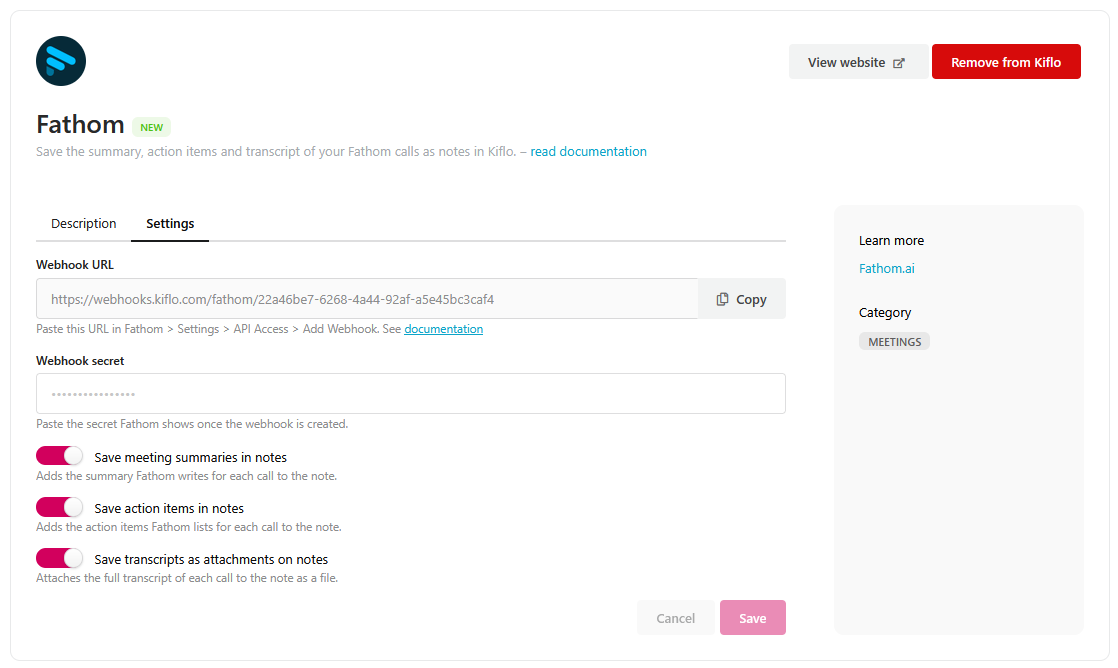
- Open the Settings tab and copy the Webhook URL.
- In Fathom, go to Settings, then API Access, click Add, and generate an API key.
- Next to the new key, click Manage, then Add Webhook, and paste the Kiflo URL into Destination URL. Fathom's webhook documentation explains webhooks in general.
- Choose the recordings to send. My Recordings covers the calls you record yourself. Turn on the Transcript, Action items and Summary events, leave CRM Matches off because Kiflo does not use it, and click Create Webhook.
- Copy the Webhook Secret from the API key's page in Fathom.
- Back on the Kiflo Settings tab, paste it into Webhook secret and click Save. The secret must come from the same API key as the webhook.
- Choose what Kiflo saves, and click Save.
Fathom signs each call it sends, and Kiflo ignores any call it cannot verify. After you save, Kiflo never shows the secret again. To replace it, paste a new one and save, and leave the field empty to keep the current one. If one of the three events is off in Fathom, that content does not appear in notes, even if it is on in Kiflo.
What can you choose to capture?
You can choose three things, and you can turn each one on or off: the AI summary, the action items, and the full transcript. All three are on by default, and if you turn all three off, Kiflo stops creating notes. If you only need the summary, Kiflo saves only the summary. Turn on what your team will read, and leave the rest off.
How does Kiflo know which record a call belongs to?
Kiflo compares the people invited to the call with the emails on your records. It saves a note on each partner, lead and deal where an invitee's email matches a partner team member, a lead or a deal contact. If one invitee matches several records, each of them gets a note. Coworkers are never matched, and a call with no matching invitee gets no note. Matching uses email addresses, so keep partner, lead and contact emails up to date.
What does the note look like?
Each call becomes a note marked as created by Fathom. The note holds the call title, the date and a link to the recording, plus the summary and action items you chose to save. The transcript is attached as a file you can download. Links inside the summary are Fathom's own, so they open the call in Fathom. Kiflo shows what Fathom already recorded and does not change it. Notes are private by default, and can be edited to become visible to partners. Also, they sync to HubSpot or Salesforce.
Which calls does it capture?
Kiflo creates a note a few minutes after Fathom saves a new recording. It captures new recordings only and does not import calls recorded before you set the integration up. Which recordings Kiflo receives depends on the scope you chose in the Fathom webhook, such as My Recordings for the calls you record yourself, and a coworker's call is included only if that scope covers it. Turn it on before your next partner call, and each new recording is matched to your records from then on.
What if no note appears, or you want to stop the integration?
If no note appears, check four things:
- The webhook secret is saved in Kiflo and matches the API key of the webhook.
- At least one invitee matches a partner team member, a lead or a deal contact.
- The Fathom scope covers the recording, for example a coworker's call.
- At least one content toggle is on in Kiflo.
To stop the integration, click Remove from Kiflo on the Fathom integration, then delete the webhook in Fathom. For more help, contact help@kiflo.com.
How can partnership teams use the call notes?
These are our suggestions for routines, not features. Three work well for partnership teams.
Prepare a quarterly business review. Open the partner record and read the last quarter's call summaries and action items, instead of searching through recordings.
Check what was agreed. After an onboarding call, the action items are on the partner record for the whole team. Our partner onboarding best practices cover what to agree in those first calls.
Hand over a deal. The call history sits on the deal record, so whoever picks up the deal starts from what was said.
Which plans include it?
The Fathom integration is available on Plus and Premier plans. Core plans do not include it. See the Kiflo plans for the full comparison, or book a demo, and we will show you the integration on a workspace like yours.
See it on your own program
Book a demo and we will show you how Fathom call notes land on a partner, a lead, and a deal, on a workspace like yours.


