


Kiflo Slack Integration: From Overlap Alert to Co-sell Request without Leaving Slack
Kiflo now posts partner activity to Slack. New account overlaps, partner applications, leads and deals land in the channels you choose. Each overlap message has a Request partner influence button, so the account owner can ask for a partner’s help without leaving Slack. The request goes to the partner manager in Kiflo, who is notified and can approve it and open a collaboration with the partner. You add Slack from the Integrations page in Kiflo, then choose your channels and turn on the notifications you want.
What does the Kiflo Slack integration do?
It pushes the partner events your team cares about into Slack, and it lets a rep act on an overlap straight from the message. Kiflo sends the notifications, and one button sends a collaboration request to the partner manager. It was built first for account mapping, and it works for lead and deal updates too.
Two kinds of channels receive notifications. An internal channel holds what concerns your own team, such as a new partner application. A partner-specific channel holds what concerns one partner, such as that partner’s deals. You decide which events go where.
How do you connect Kiflo to Slack?
Add Slack from the Integrations page in Kiflo, allow it in Slack, then choose your channels and turn on the notifications. You need to be an admin of your Kiflo account and have permission to install apps in your Slack workspace. The settings apply to the whole account, so one admin sets them up once for the team. Kiflo has a full Slack setup guide.
- In Kiflo, go to Manage, then Integrations, and open Slack in the Communication category.
- Click Add to Kiflo.
- In Slack, choose your workspace and click Allow.
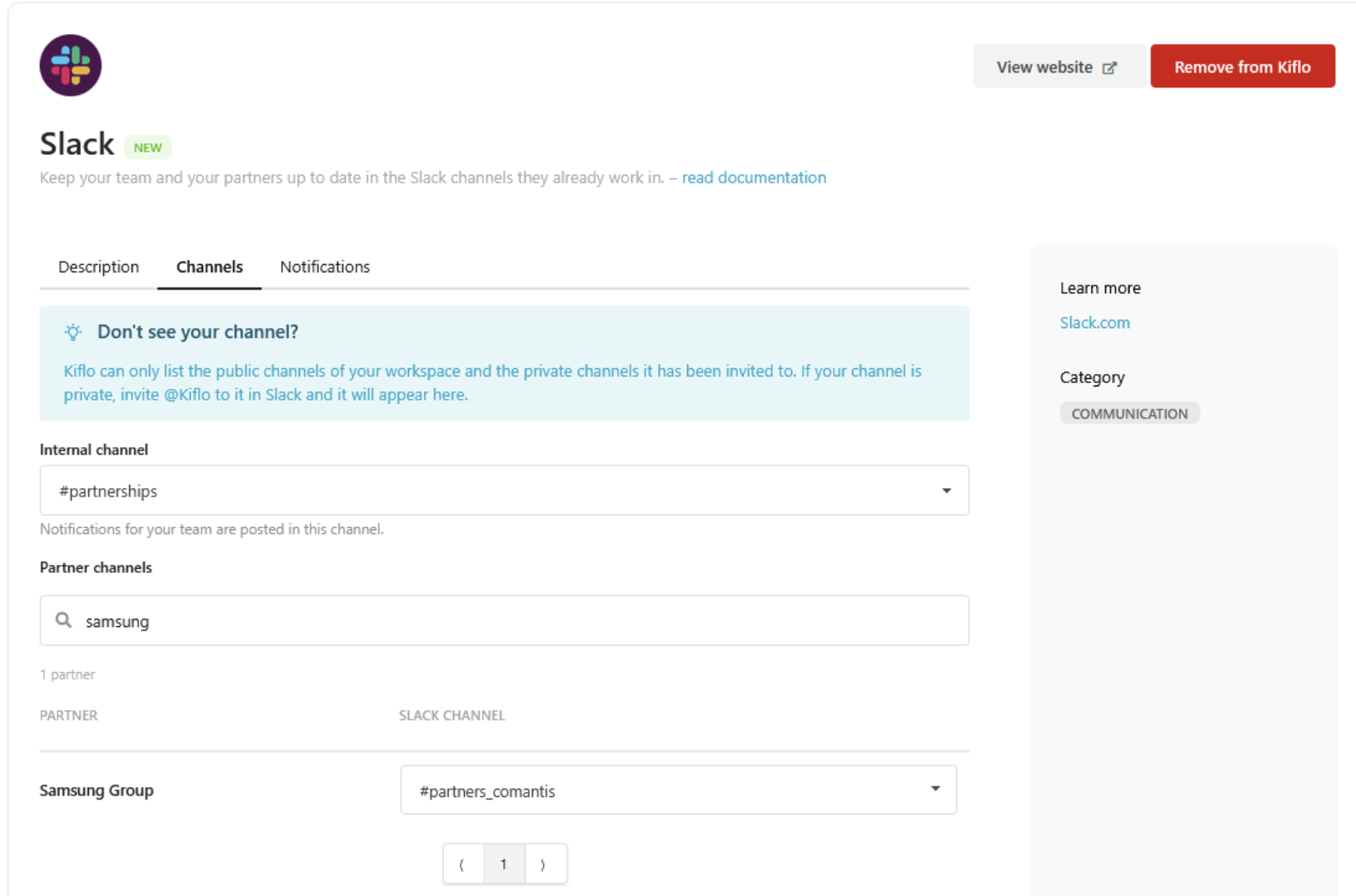
- On the Channels tab, choose the internal channel for your team. For each partner, search for the partner by name, pick the channel you share with them in the Slack channel column, and click Save.
- On the Notifications tab, turn each notification on under Internal channel, Partner channel, or both, and click Save.
Nothing is posted until you have chosen channels and turned on notifications, and all notifications start off. Three rules apply to channels:
- Kiflo never creates channels or invites people. You choose existing channels.
- Kiflo lists public channels, and private channels it has been invited to. For a private channel, invite @Kiflo in Slack first.
- One channel links to one partner, and one partner links to one channel.
Which notifications can Kiflo send, and where do they go?
Kiflo sends six notifications. All of them can go to your internal channel. Only lead updates and deal updates can go to a partner’s channel, and a partner channel receives only updates about that partner’s own leads and deals. You turn each notification on or off for the whole account.
Apart from the overlap digest, each notification is sent when the event happens. The overlap digest is grouped and sent every few hours. If a toggle cannot be switched on, that notification cannot be posted to that channel type.
What does an overlap alert look like?
An overlap message is a digest. Kiflo groups new overlaps and sends them every few hours, one message per account owner. Each message lists that owner’s accounts and the partners that overlap with each one, and every account has a Request partner influence button. The button sends a collaboration request to the partner manager in Kiflo, and the account owner stays in Slack.
Finding the overlap is the easy part. What matters is what happens next, and the message starts it where the rep already works. The flow runs like this:
- Kiflo detects that one of your accounts matches a partner’s account.
- Every few hours, Kiflo groups the new overlaps and posts one message per account owner to your internal channel. If the owner’s email address matches a Slack user, Kiflo tags them.
- The owner clicks Request partner influence on an account.
- Kiflo sends a collaboration request to the partner manager in Kiflo, and the owner stays in Slack. The partner manager is notified.
The rep does not open another tool to ask. Kiflo takes the owner from the account in Kiflo and uses their email address, so it works the same whether your accounts come from HubSpot or Salesforce. You can read more about account mapping and how an overlap turns into co-selling.
![A Kiflo overlap digest in Slack listing accounts, their overlapping partners and a Request partner influence button for each account]](https://cdn.prod.website-files.com/6798a7cd4701a445d08758f4/6afdb607e175cb3649185965_Screenshot%202026-11-18%20at%2015.24.25.png)
How should you organise your Slack channels?
Start with one internal channel for your team and, for each partner, the channel you already share with them. The internal channel can receive every notification. A partner channel receives only lead updates and deal updates about that partner’s own leads and deals, so overlaps, applications, lead submissions and deal registrations stay inside your team.
This is our suggestion, not a requirement. You can turn on lead updates and deal updates for both the internal channel and the partner channel, so your team and the partner see the same update. Kiflo’s documentation describes the partner channel as the channel you share with the partner, for example with Slack Connect. On the partner’s side, partners only need to be invited into your Slack workspace.
What if you disconnect Slack, or messages do not arrive?
Click Remove from Kiflo on the Slack page to disconnect. Kiflo forgets the channels but keeps your notification choices, so reconnecting only means choosing channels again. Connecting a different Slack workspace also clears the channels you selected. If you delete a partner in Kiflo, that partner’s channel is unlinked and stays in Slack, and you can link it to another partner.
If messages do not arrive, check that you chose channels and turned on notifications, that you clicked Save on both the Channels tab and the Notifications tab, and, for a private channel, that you invited @Kiflo to it.
Already using Zapier or the REST API?
You can keep them. The Slack integration covers the standard notifications without any setup in a third tool, and Zapier and the REST API stay available for custom alerts and workflows that go beyond them.
See it on your own program
Book a demo and we will show you the Slack alerts in action, from the first overlap to the collaboration request.


